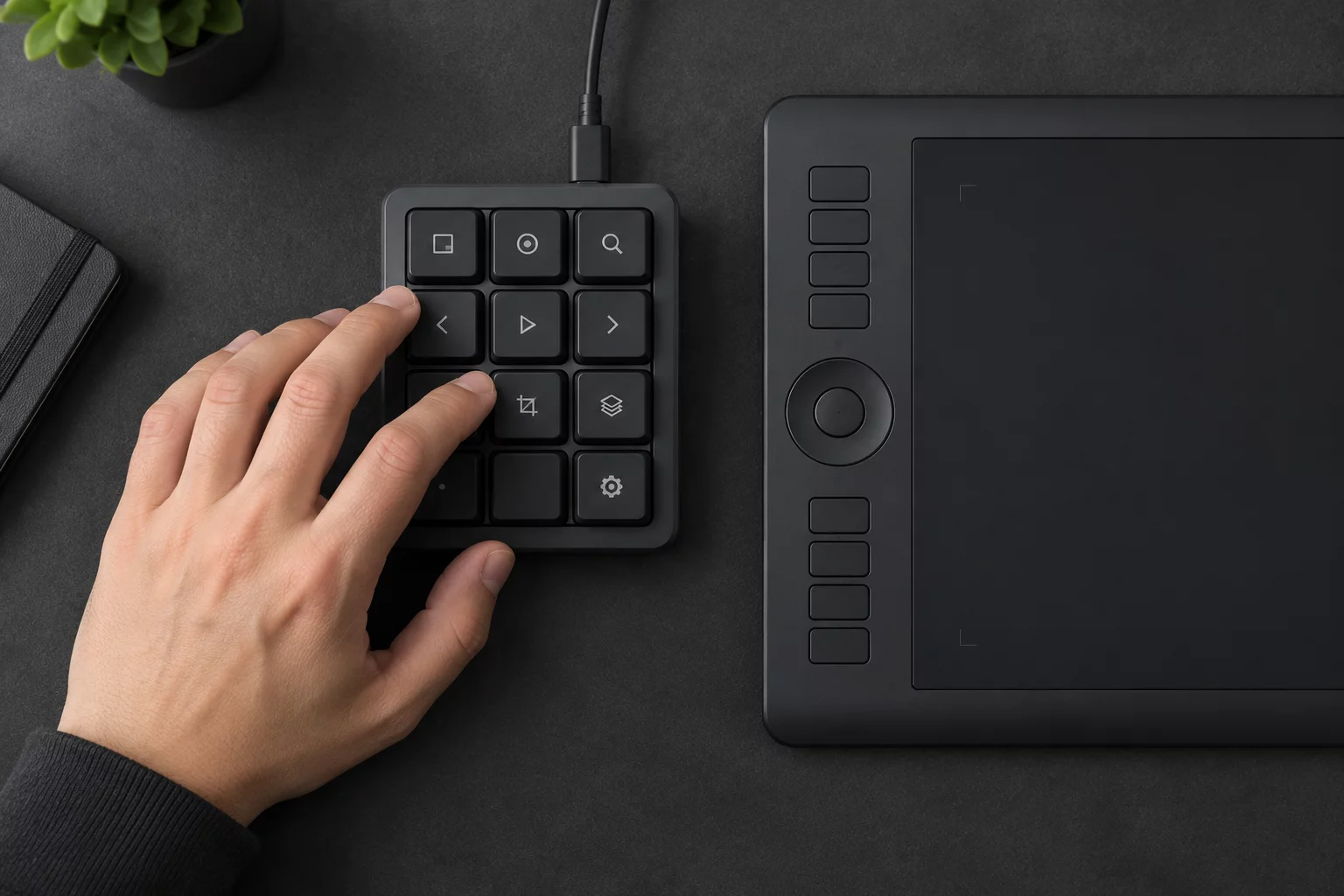
Sorting five thousand raw captures within three hours leaves zero room for wasted physical motion. When your right hand continually hops between arrow keys and your trackpad, or your left hand stretches across fifteen inches to reach numeric rating keys, cumulative micro-fatigue mounts quickly. A triage editor evaluating twenty frames a minute performs thousands of repetitive reaching motions per session. Anchoring one hand firmly over an eight-key perimeter keeps focus on sharpness evaluation rather than mechanical hunting.
Direct tactile feedback replaces visual keyboard confirmation entirely. We map triage actions to a single compact grid where every gatekeeper decision executes without raising the wrist from the desk surface. By binding automated advance triggers to tag inputs, a single deliberate keypress evaluates the capture, records the color flag, and brings up the subsequent variant instantly.
Hardware Mapping Parameters
- Anchor Cluster
- Left Hand (Q-W-E-R / A-S-D-F Zone or Mechanical Numpad)
- Key Actuation Travel
- 1.2mm to 1.8mm Linear Switches (45g Actuation Force)
- Automate Advance
- Active on Color Flag and Reject Assignment
- Inspection Trigger
- Direct Spacebar or Dedicated Thumb Key to 100% Focus Loupe
Software default key bindings often force unnatural finger contortions. Remapping the triage workspace around finger strength distribution ensures high-frequency commands rest under your index and middle fingers, while destructive or permanent actions demand purposeful secondary reach.
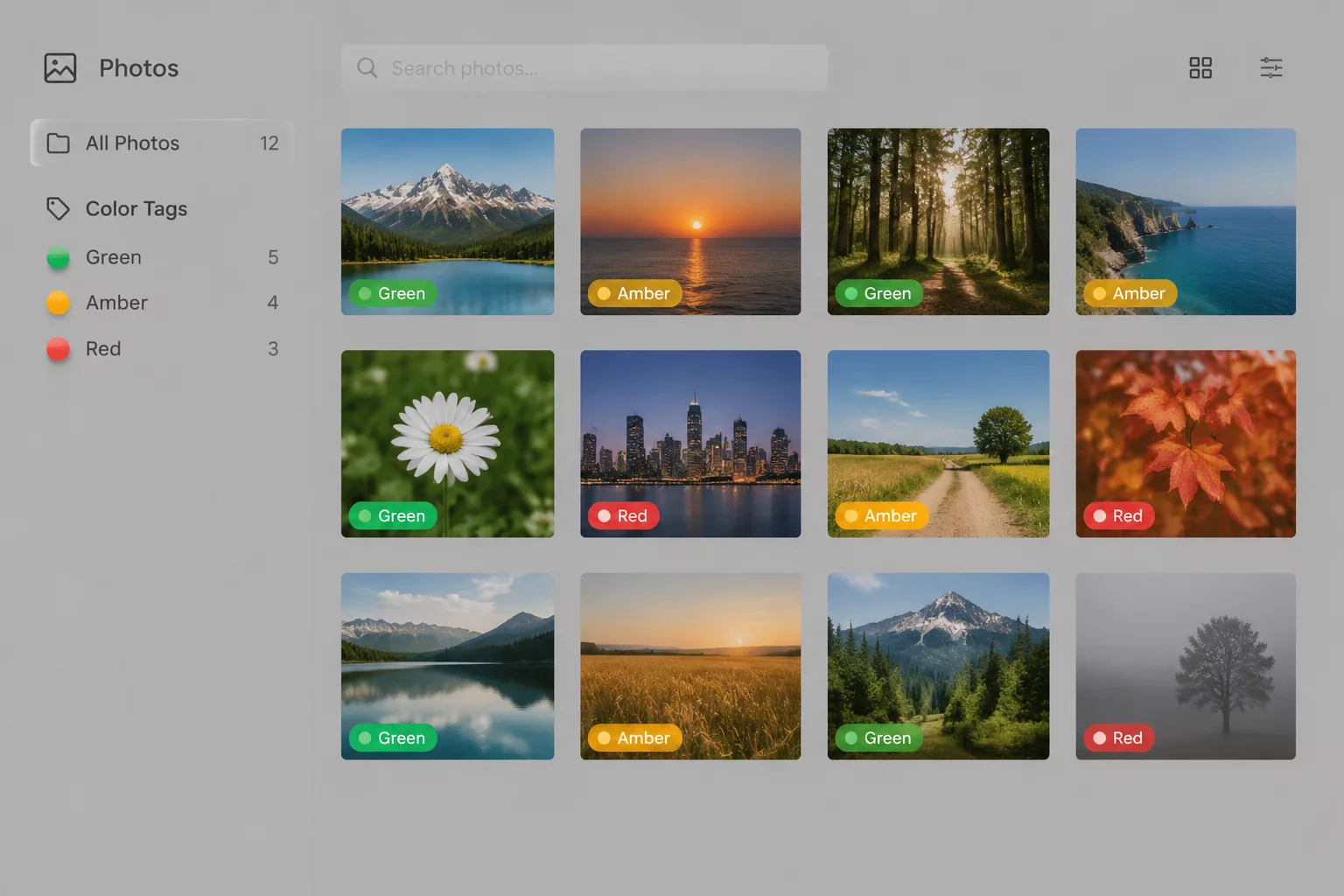
- Assign immediate rejection (Red Flag or Trash) to the left ring finger (Key A), preventing accidental deletion while maintaining rapid access.
- Designate the index finger (Key D or F) for Technical Keep (Green Tag), coupled with instantaneous single-frame advancement.
- Bind the thumb strictly to momentary 100% center loupe zoom, releasing to overview scale the split-second eye verification finishes.
Splitting candidate comparison from rating keys keeps your focus pristine. Use a dedicated dual-variant toggle shortcut under Key S to swap between the active frame and its closest chronological peer without altering metadata states.
Visual decision latency drops below 200 milliseconds once an editor stops glancing down at keyboard markings. Achieving that cadence requires absolute physical consistency across workstations. If your capture software introduces rendering lag between full-resolution raw files, pre-render 1:1 preview caches across the entire shoot before beginning Pass 1. Zero input delay allows muscle memory to guide the sorting sequence cleanly.
Take scheduled micro-pauses every forty-five minutes. Relax your palm flat on the desk, flex the extensor tendons, and pull your gaze away from the calibrated display. Physical ergonomics and systematic shortcut design protect both your wrists and your curation acuity through long catalog deadlines.
Apply these selection questions in your workspace: Selection Passes and Variants in Capture One.
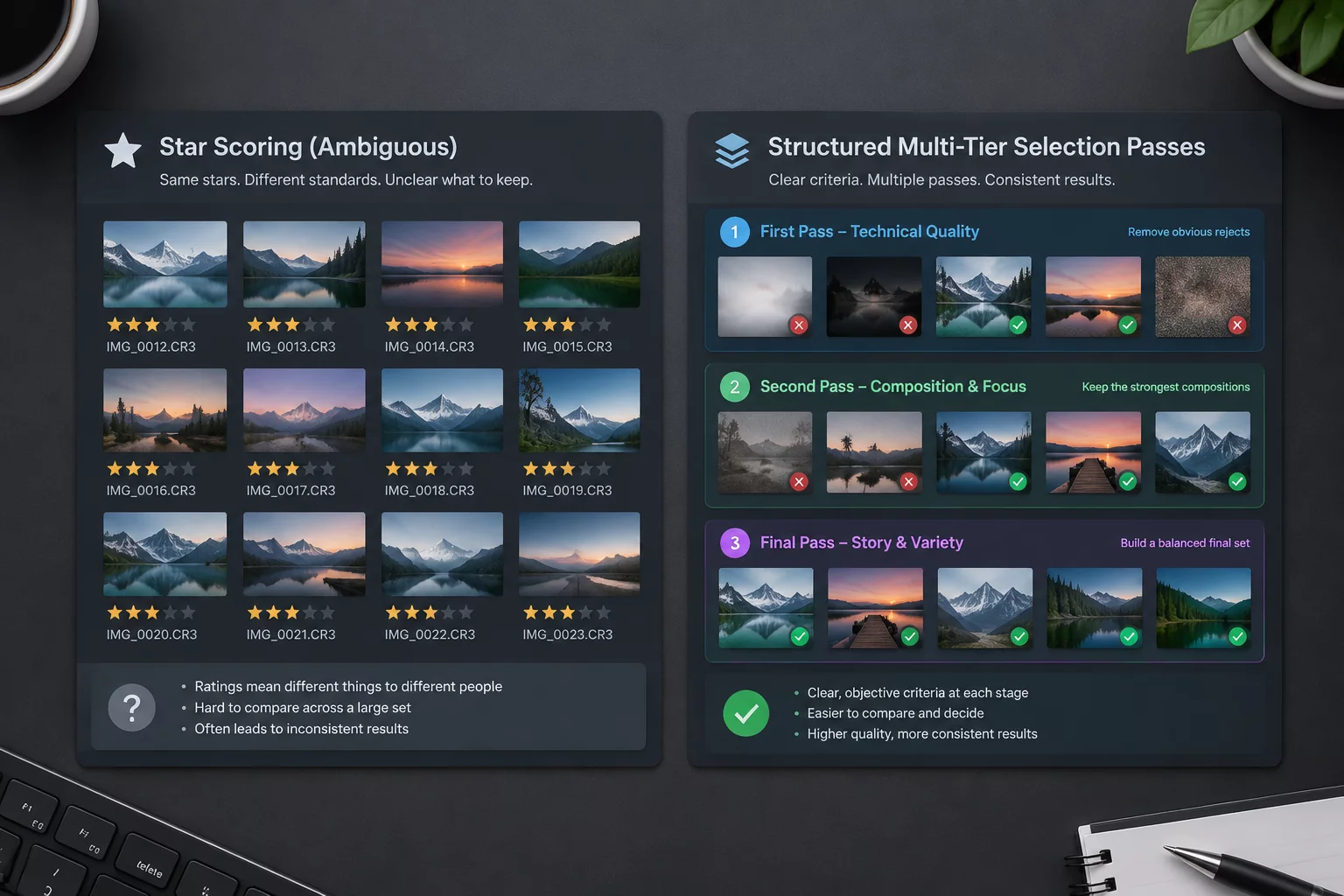
Multi-Pass Triage Architecture Guide
Read the step-by-step breakdown of how technical gating, expression filters, and shortlist variants flow inside Capture One sessions.
No comments yet. Be the first to leave a comment.